
The Best Design Partners Don’t Care About Your Color Palette
A funny thing happened on the way to boring testing with Claude Code and Playwright
The boring origin story
I build monitoring and evaluation systems for NGOs. It is, by definition, not glamorous software. But it has to work — M&E analysts are entering program data, tracking indicators across countries, managing budgets. When something breaks, people notice.
I’d been hearing about Claude Code doing UI testing — like, actually clicking through a browser, filling in forms, the whole thing. My first reaction was: that sounds useful for making sure I haven’t broken anything before a commit. Very practical. Very boring. Let’s set it up.
The setup takes about five minutes — details at the end if you want to follow along. The short version: Claude Code plus the Playwright MCP server, wired together with a small config file. Start your dev server, describe what you want tested in plain English, watch it happen.
What actually happened once I did was more interesting.
The thing I didn’t expect
I was watching Claude click through my app — navigating, filling in a form, verifying the result — and I started noticing things. The metric cards layout had a slightly awkward visual rhythm. The eye zigzags across a grid when it wants to scan top-to-bottom. There were labels that were technically accurate but weirdly worded.
None of these were bugs. All of them were friction. And I’d stopped seeing them because I’d built the thing.
Here’s what happened next: I just said so. Out loud. To Claude Code, which was still in the same session with a browser open.
“What if the cards were full width keeping the cool left border of course. This makes the footer challenging but it might read better as a list. Just experimenting. Let’s see and provide your input too.”
It made the change. I could see it in the browser immediately. We went back and forth a few times — tweak, look, tweak again — and in about 20 minutes I’d improved a layout that had been mildly annoying.
That’s when I realized this wasn’t a testing session anymore.
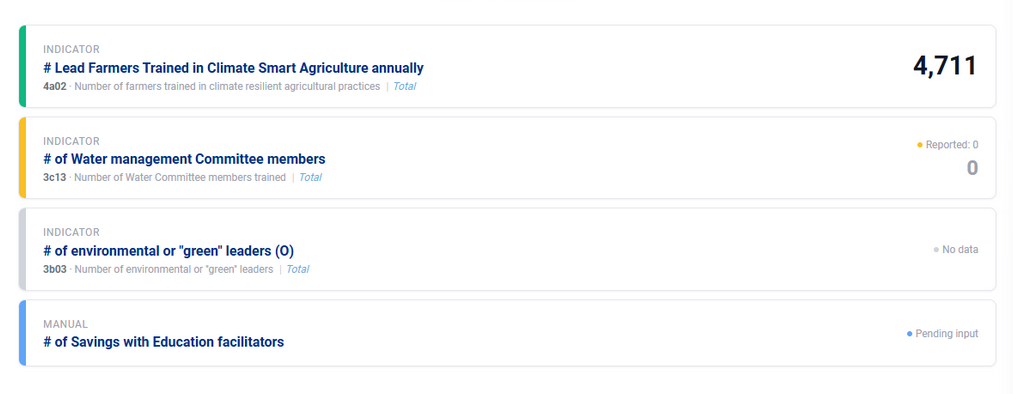

After: The banter, and the result — all in one session
We Kept Going — Add Project Location Workflow
My work involves mapping project locations across countries — Kenya, Madagascar, Zimbabwe. I told Claude to open the map, add a new location, and verify it rendered correctly. It navigated the interactive map, clicked to place a pin, filled in the location details, and confirmed it appeared.
Then Claude pointed out that the next step wasn't clear after clicking the Add Location button nor was there a way to get out cleanly. It recommended an enhancement, we tweaked it, and it was implemented immediately.
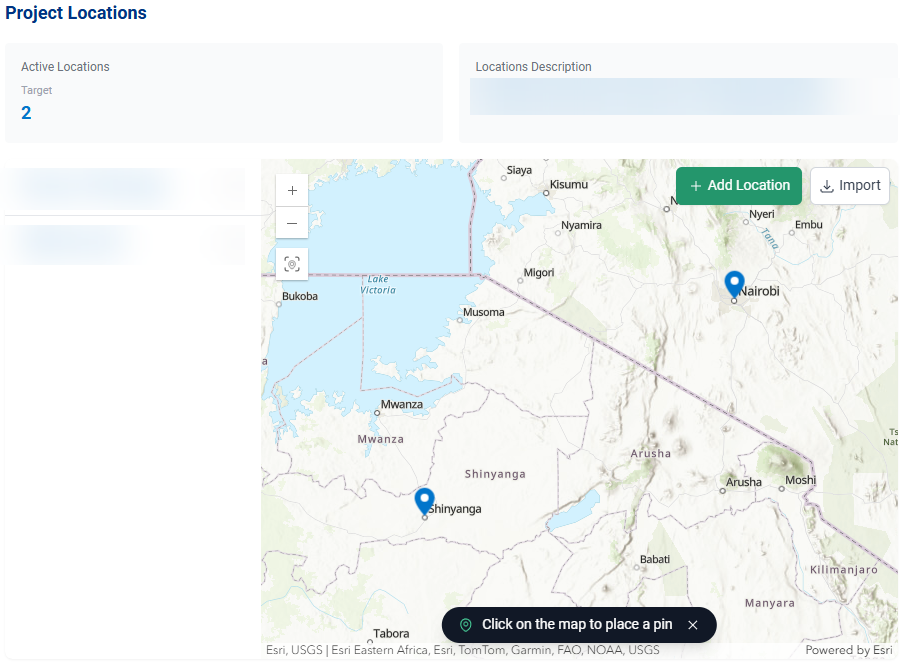
Project locations across East Africa — the map workflow Claude navigated and tested
Why it works as a design tool
A few things make this combination genuinely effective for UX work, not just testing:
- It sees your app fresh. Claude doesn’t have the curse of familiarity. It’ll notice that a layout is awkward, that a label is ambiguous, that two steps in a workflow feel disconnected — because it’s not used to the current design.
- You’re already in a browser. The feedback loop from “I notice this is awkward” to “now let’s fix it” to “let me see it” is maybe 60 seconds. No Figma mock-up, no deploy, no waiting.
- It doesn’t have design pretensions. This is underrated. Claude isn’t going to suggest you redesign your color system or question your component architecture. It’ll fix the thing you asked about and move on. Unfussy is the right word.
- Screenshots are automatic. Every significant interaction can be captured. You end up with a natural before/after record without thinking about it.
What this is good for (and what it isn’t)
To be clear about scope: this isn’t a replacement for a proper automated test suite. If you need deterministic coverage that runs in CI in 30 seconds, write Playwright tests. This is different.
What it’s actually good for:
- Pre-commit smoke tests: “run through the main workflows and tell me if anything looks broken”
- Live UX sessions: “navigate this workflow and tell me where it feels clunky”
- Exploratory testing: Claude will try inputs and interactions you wouldn’t think to test
- Dev database seeding: combine browser automation with direct API calls to generate realistic test data
- Visual regression: screenshot key screens, compare before/after a refactor
The common thread is: things that are hard to script formally but easy to describe in plain English.
The thing I keep coming back to
I’ve used a lot of AI tools for development work. Most of them are useful in a narrow lane — autocomplete, code generation, answering questions. This felt different because the loop was so tight. Describe a thing, watch it happen, respond to what you see, watch it change.
It’s not magic. Claude misunderstands things sometimes. Occasionally it clicks the wrong element or gets confused by a dynamic UI (or map navigation). But those moments are obvious and recoverable, and the ratio of useful-to-frustrating is high enough that I reach for it automatically now.
I went in looking for a boring testing tool. I found something I reach for every day. Happy accident.
— The End
The Technical Details
Making it not stop and ask every five seconds
The default behavior is a bit hand-holdy — Claude will pause for confirmation, ask if it should proceed, wait for feedback. Fine for exploration, annoying for a workflow you want to run unattended. A single permissions flag and a couple of lines in your CLAUDE.md fixes this. Details in the setup section at the end.
The CLAUDE.md file is worth understanding beyond just testing. It’s a persistent contract with Claude Code — your stack, your conventions, your patterns. I have 200+ lines covering composables patterns, API usage, styling conventions, even specific UUIDs that show up in my data model. Every session starts with that context loaded. Claude Code writes code that actually fits the codebase, not generic boilerplate.
THE SETUP
Everything you need to replicate this, in order.
Prerequisites
Node.js installed. Claude Code installed globally:
npm install -g @anthropic-ai/claude-code
Add the Playwright MCP server
Add this to your Claude Code config at ~/.claude/settings.json (create it if it doesn’t exist). On Windows: C:\Users\<you>\.claude\settings.json
{ "mcpServers": {
"playwright": { "command": "npx", "args": ["@playwright/mcp@latest"] }
}
}
If npx causes issues on Windows, try "command": "npx.cmd" instead.
Run without constant permission prompts
Either pass the flag at startup:
claude --dangerously-skip-permissions
Or add to your settings.json:
{ "permissions": { "allow": ["*"] } }
CLAUDE.md — your project contract
Create a CLAUDE.md in your project root. Claude Code reads this automatically at the start of every session. At minimum, add a testing behavior section:
## Testing Behavior - Do not pause for confirmation between steps - Log failures and unexpected behavior, then continue - Compile a full report at the end with screenshots of failures - Dev server runs on localhost:5173 - Backend API must be running separately before tests start
Beyond testing, use CLAUDE.md to document your stack, conventions, component patterns, API usage, and any project-specific constants. The more context you give it, the less generic its output.
Running a session
Start your dev server. Open Claude Code in your project directory. Describe what you want in plain English:
Navigate to the projects list, open the first project, verify the indicators section loads correctly, then add a new indicator and confirm it appears in the list.
Claude will open a browser, work through the steps, and report back. For a pre-commit sweep, you can pipe a prompt directly for fully unattended execution:
echo "Run the pre-commit UI checks defined in CLAUDE.md" | claude --dangerously-skip-permissions